Google is Revamping Gmail With Design Tweaks and Merged Settings

Google has announced that it is working on a revamping a power feature that adds visual tweaks and elevates the Gmail settings. Google will be upgrading multiple Inboxes out of the Advanced menu.
Having a multiple Inboxes option will allow you to break out important Gmail messages and have them appear next to your primary email feed.
The revamp will first roll out starting February 20 for the Rapid release and March 5 for Scheduled release domains. This change will be available for all G Suite customers and personal Google Accounts.
Once ready, all you will need to do is select that “Inbox type” in the settings menu. Then pick on the Preferences to configure up to five sections will appear below that instead of being housed in a separate section.
There are a handful of related changes to this revamp, starting with Gmail’s Multiple Inboxes no longer supporting the split pane configuration that allows you view the body of an email next to the message list. The “preview pane” will be renamed to “reading pane”. It will be available for other inbox configurations. This change will be accompanied by a warning prompt.Also on the visual front, there are now individual scroll bars for multiple inboxes in the right-side configuration.
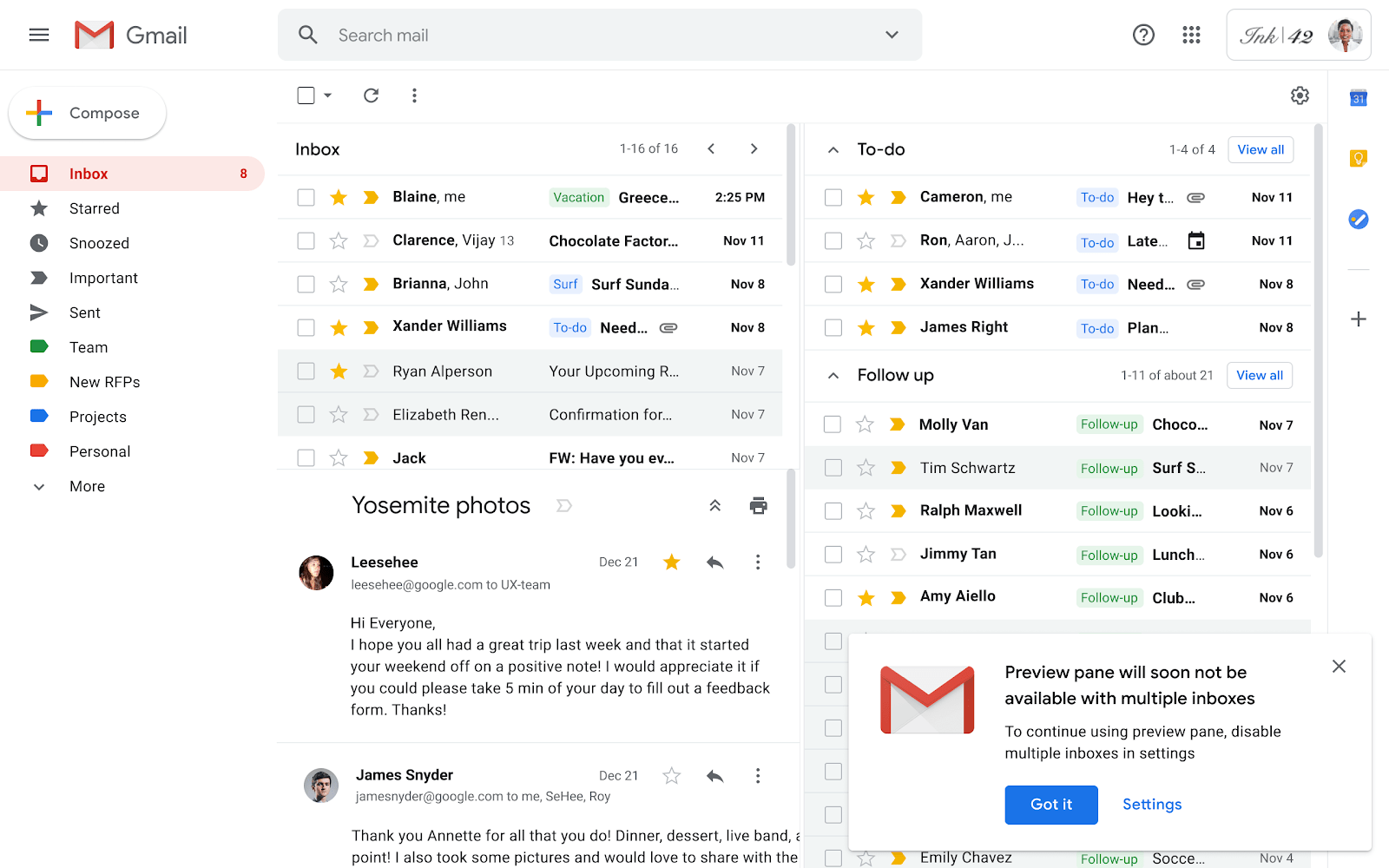
To turn on multiple inboxes, the first click on the settings button then clinked advanced bar. It will give the multiple inboxes option. To activate, press the enable button.
“Multiple inboxes are helpful for people who have multiple email accounts and want to consolidate them. They’re also good for people who want to prioritize certain daily tasks or individuals.
For example, you can: Create inboxes for tasks that need to be done today, tomorrow, and next week. Create inboxes for an email from certain people, such as your manager or an important customer and also manage email from different accounts. You can create up to 5 different inboxes.”
There’s also a quick shortcut to collapse additional inboxes.
Lastly, there is a single toolbar to archive, delete, label, and perform other actions. For instance, If you create inboxes based on labels, add the correct label when you compose an email. That way, your email and the reply automatically go to the correct inbox
Reads 98

No Result
View All Result
This website uses cookies. By continuing to use this website you are giving consent to cookies being used. Visit our Privacy and Cookie Policy. I AgreeRelated reporting
More Tech →