Do you know why most people consider video editing to be something so difficult? That’s because they don’t come across the right software for their needs. Of course, there is no denial that Final Cut Pro or Premiere is an awesome software. Our point is that you have better choices like VideoProc when you simply want to edit or rotate a video. We have been using this editing tool for quite some time and we thought you would like it. So, in this article, we have a brief review of VideoProc, explaining what you get and what you do not.
What Is VideoProc?
VideoProc is an extremely easy-to-use video editor that packs so many advanced features. This package may not be a direct replacement for FCP or Premiere, but the possibilities are endless. It’s pretty awesome that you can use VideoProc to some of the diverse functions: rotate MP4 video files or optimize GoPro footage for further editing. And, this actually puts in a position of flexibility. While you cannot make timelines or add some transitions into the content, VideoProc could be the brightest and easiest way to convert your footage into something better.
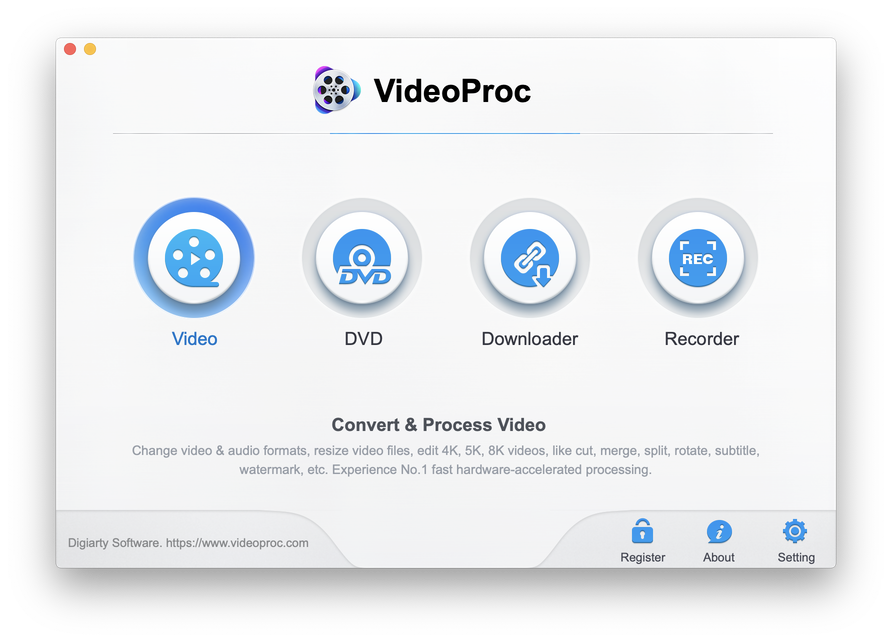
We believe you have a clearer idea about the basics. Now, let’s see the editing experience being offered.
Basic Editing with VideoProc
Let’s consider video rotating as the representative feature here.
As you know, you may have to rotate video once it has been shot. This happens if you had captured it in one different orientation than you want. If you were using a GoPro, for instance, you may have had to hand the camera upside down, thereby manipulating the output. Don’t worry if you have VideoProc though. Rotating a video and rendering the output is the easiest task with this video editor.
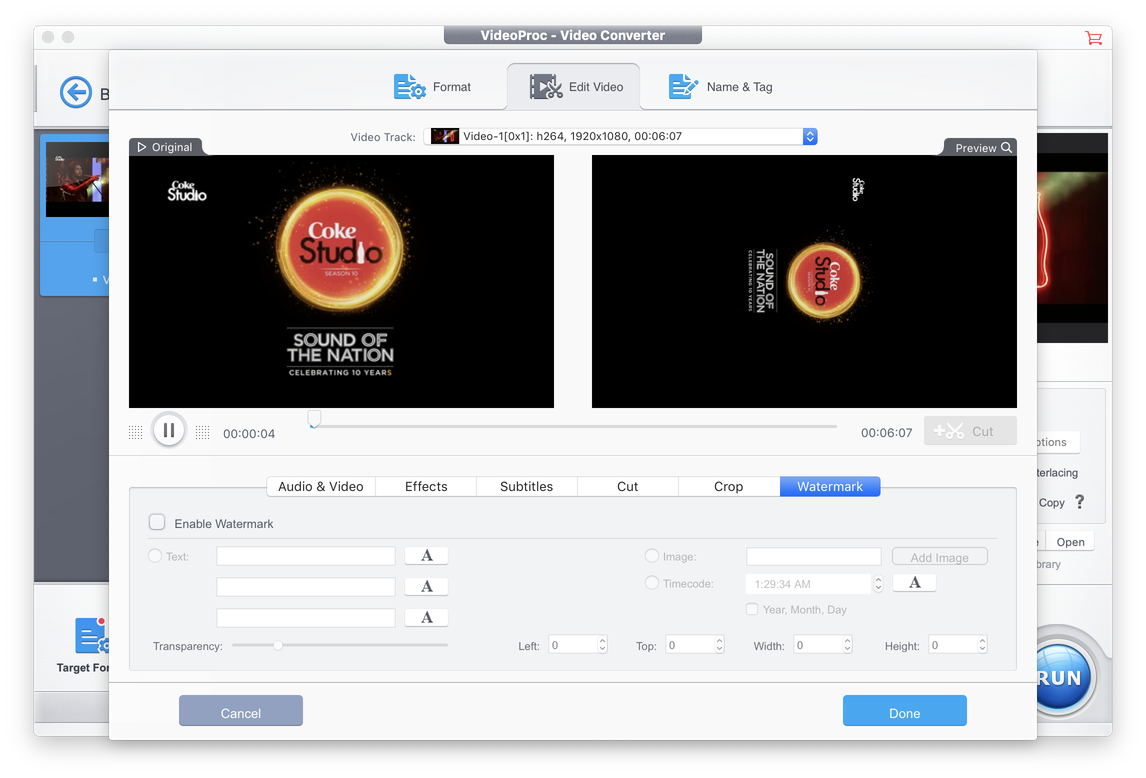
First of all, there are no limits of size or resolution. Even if you have a fully-fledged 4K footage at your place, you can use VideoProc to rotate and edit it. Talking about the other editing functions, there are a few. You’ll be able to crop, trim and split videos. You can also bring in some filters and effects to the content if you are interested.
Advanced Editing with VideoProc
Probably the best advanced feature of VideoProc is that you can convert the output video into almost any format in the world. It does not matter if you have an iPhone, Xbox or an Android device: there are easy-to-use patterns that you can use all the way. On top of these comes the ability to de-shake, stabilize, optimize and compress videos.
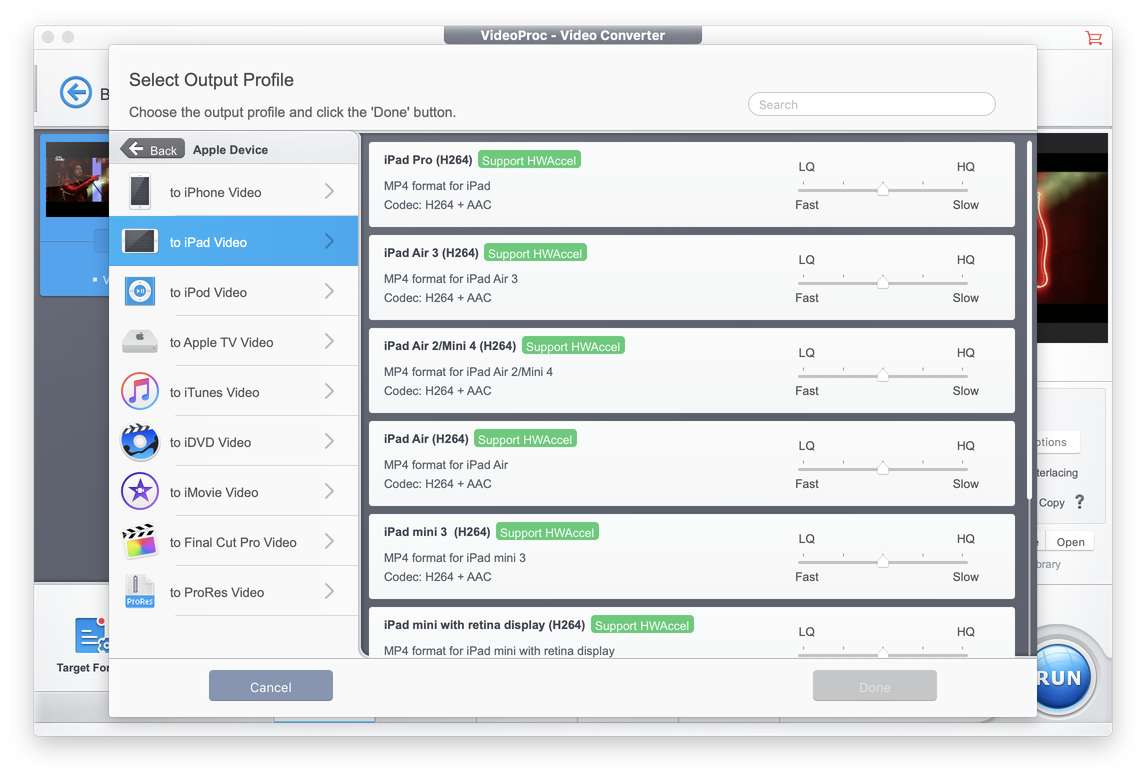
Advanced features in VideoProc have been designed from the practicality point of view. You will love these features if you are someone who captures adventurous videos. For instance, de-shaking videos is something necessary in that case. In the same way, you can correct and denoise the content as well. All these features come into place when it’s time.
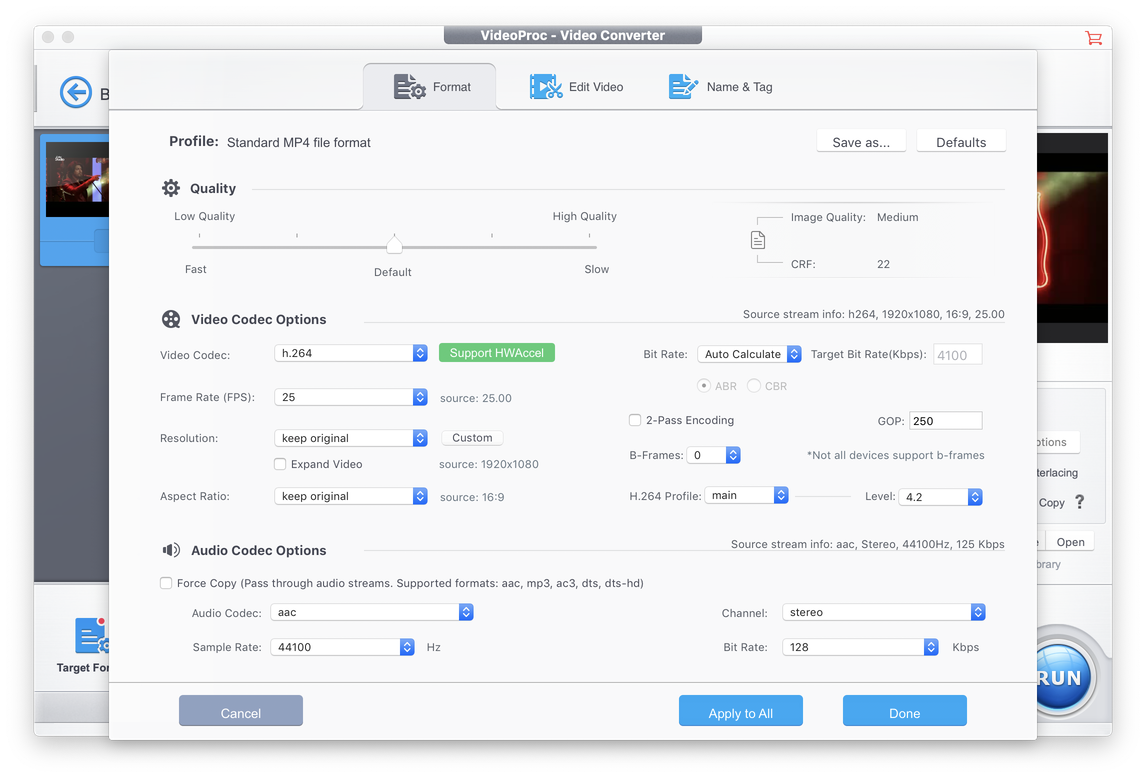
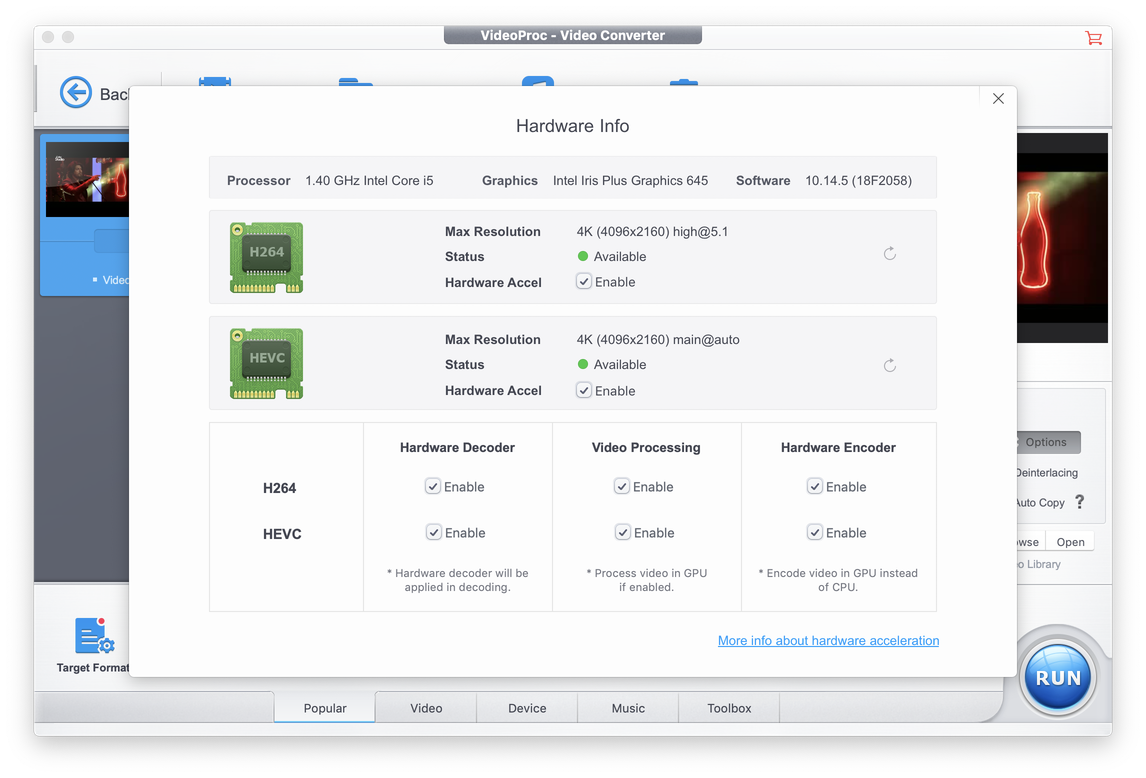
It’s also amazing that VideoProc is powered by level-3 hardware acceleration. While this acceleration boosts the actual performance quite impressively, it does not take a toll on your CPU. From the sustainability point of view, that’s something awesome.
How to Rotate Videos using VideoProc
Let’s have a look at the simple steps you need to follow for rotating a video using VideoProc. Here is the video guide which might be helpful:
<iframe width=”560″ height=”315″ src=”https://www.youtube.com/embed/f3FIRk4W5Y4″ frameborder=”0″ allow=”accelerometer; autoplay; encrypted-media; gyroscope; picture-in-picture” allowfullscreen></iframe>
- You have to open VideoProc and choose Video from the available main menu. This would take you to the Video Editing interface.
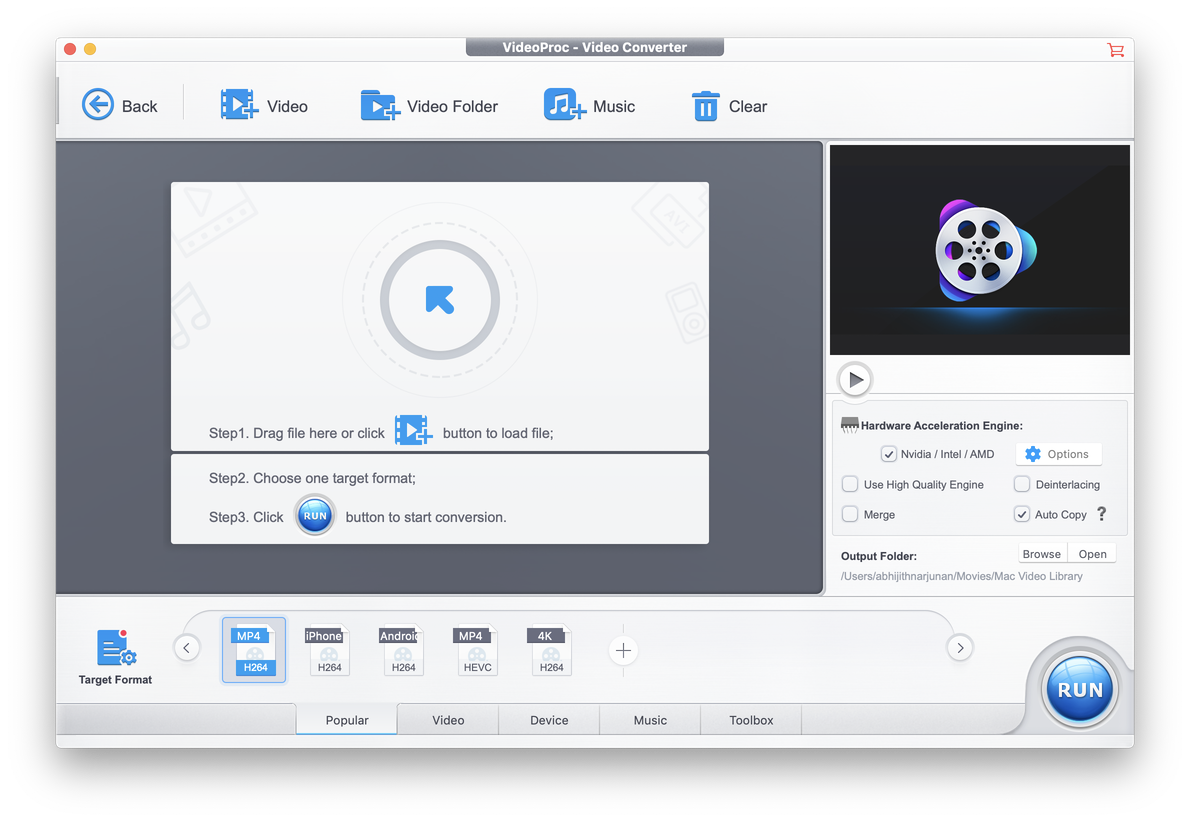
- You can either drag-and-drop or simply select the video file that you want to edit.
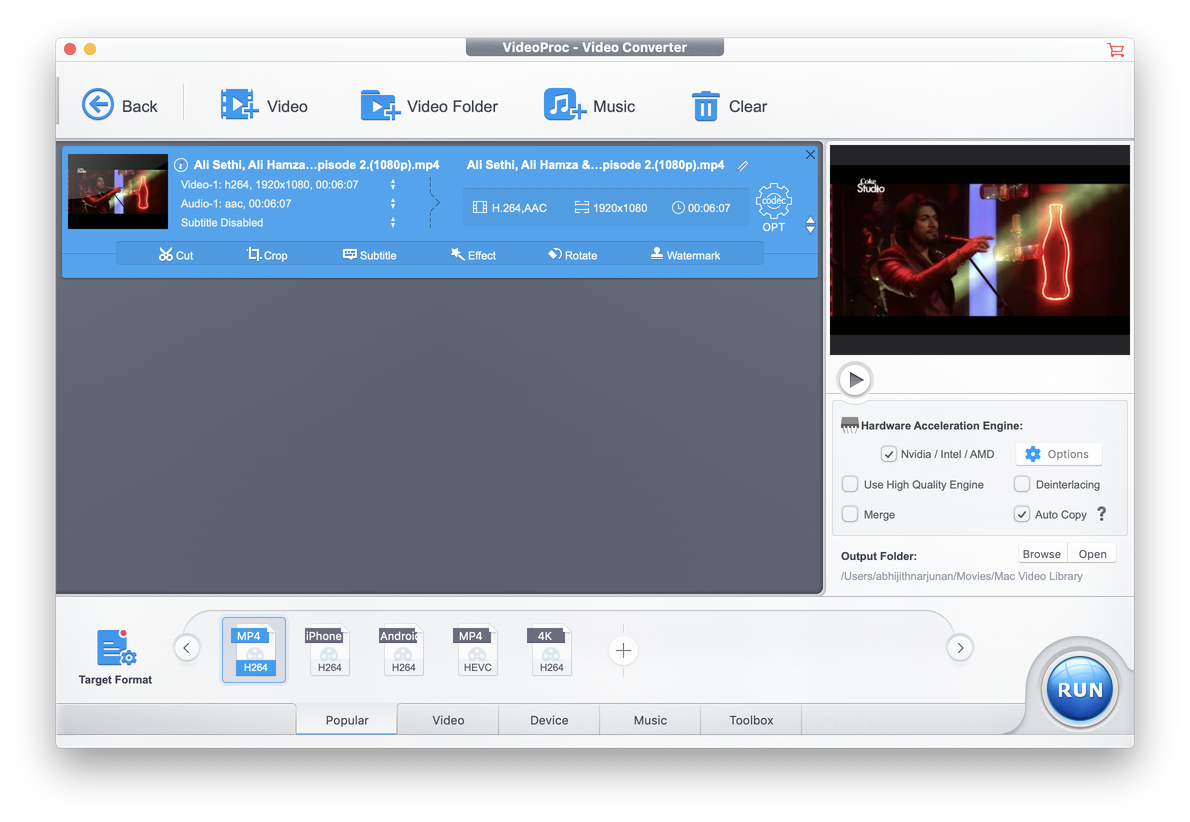
- Once the file has been important, find the Rotate button right below the video title and details. This is an easy task.
- Then you will see the actual editing interface of VideoProc, where you can rotate the video by 90 or 180 degrees, all according to your needs.
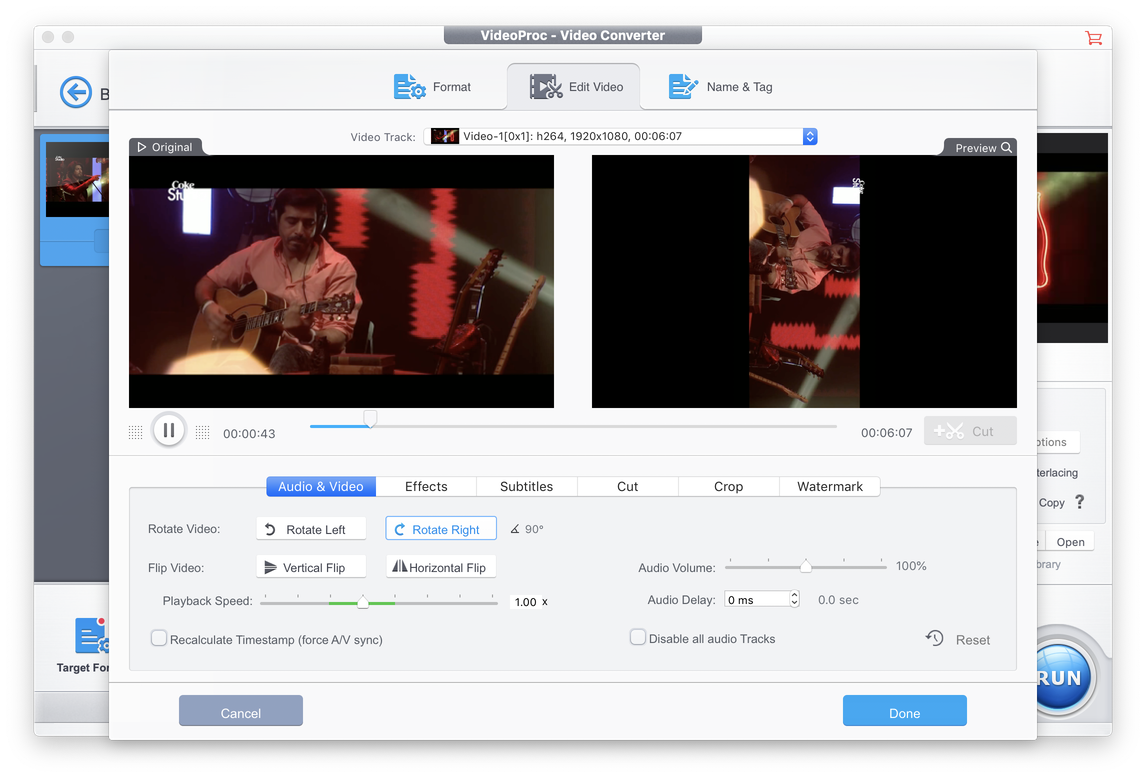
Press Done and the preferences would be saved. And, when you render the final video, everything will be in its place.
The Bottom Line
What do you think about this 4k video editing software? We think it’s pretty cool to have so much of features in such a simple package. While the program doesn’t take a toll on your CPU, the performance is just great, and the conversion speeds prove the same. So, we would be recommending this tool to anyone who needs an effective way to rotate, split or edit their favorite video content.
Reads 162
Related reporting
More Tech →